
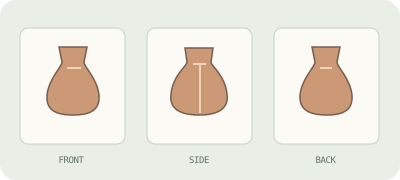
Three ways to go from image to 3D
“Image to 3D” can mean generative reconstruction from one picture, AI guided by several views, or photogrammetry from a set of overlapping photographs. They are not interchangeable: they trade speed, source requirements, and geometric evidence.
For accuracy: a single photograph cannot prove the true shape of a hidden back or underside. If dimensions or fidelity matter, capture more views or use a measurement-based workflow, then verify the result independently.
Prepare a useful source image
- Frame one subject clearly; crop away unrelated objects and clutter.
- Prefer sharp focus, even lighting, visible edges, and a simple background.
- Avoid strong glare, transparent materials, deep shadows, and motion blur when possible.
- For multi-view input, keep the same object and capture distinct angles with consistent lighting. Follow the selected tool’s own input rules.
- Keep an untouched source copy. Previewing or generating a model is not a substitute for a proper scan or CAD measurement.
Inspect the hidden parts, not just the front
Single-image systems must estimate surfaces the camera never saw. A plausible front view can hide a distorted rear, thin or missing geometry, inaccurate scale, or texture that wraps poorly around edges. Treat the output as a draft until it passes the checks your project needs.
Rotate the object, inspect silhouette and underside, check whether the mesh is connected and oriented correctly, and test it in the destination app. For 3D printing, verify dimensions, wall thickness, and mesh validity in a slicer; an STL file alone does not make an object printable.
Choose an export format for what comes next
Convenient single-file delivery for many web, real-time, and AR workflows; often packages geometry and materials together.
Widely supported for mesh interchange and editing. Texture/material files may be separate, so keep the whole export set together.
Common for 3D printing and stores shape, not the textured appearance. Check scale, watertightness, and wall thickness in a slicer.
Useful for mesh or point-cloud work and color data in supported applications. Confirm which PLY variant and attributes your next tool expects.
Format support varies by product and export setting. Confirm the current options in the tool before building a workflow around one.
Tool notes: verify the workflow before committing
This is a short factual orientation, not a ranking or endorsement. Product features and terms can change; check the provider’s live page before uploading confidential material or paying.
Meshy Image to 3D
Its official page describes image uploads, multi-view input, and exports including FBX, OBJ, GLB, USDZ, STL, BLEND, and 3MF. It does not establish that every format or capability is available on every plan; check current account terms.
Tripo
Its official public page describes generating 3D models from text or images and lists formats including STL, 3MF, and OBJ for one printing workflow. Verify the exact image mode, export availability, and terms in the product before relying on them.
Photogrammetry
Unlike a single-image AI guess, photogrammetry uses matching visual detail across multiple photos to reconstruct observed surfaces. It is a capture process, not a one-click guarantee; use a dedicated photogrammetry app and follow its capture guidance.
Our image-to-3D tool uses ByteDance Seed3D through Volcengine Ark. Free preview availability is limited. Select an image, click Generate, then inspect and download the result here. The other providers listed above are not connected.